
The Podere San Martino (PSM) Screen Saver
We've often been told that once people have visited PSM, they've set their desktop wallpaper to a picture that they've taken whilst staying here.
We really think that's lovely, and we decided that if this is the case, that we might go one better and provide visitors with a lasting memento of their visit - the Podere San Martino Screen Saver (download).
As it stands, our screen saver comes with over 50 pictures of PSM taken over the seasons ... you'll notice the nets we put down to catch the olives during harvesting; and see some more of what PSM looks like in the autumn and winter.
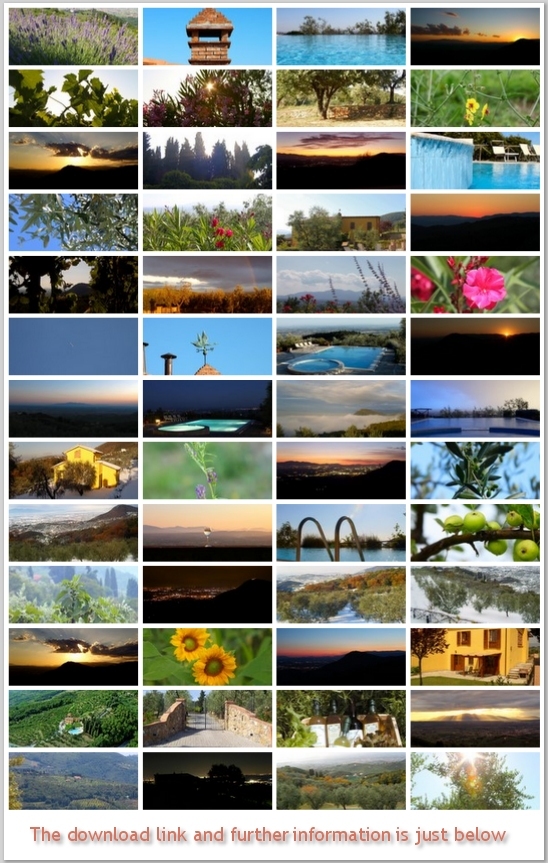
Click the image below to get the Podere San Martino Screen Saver (15Mb)

Tested on Windows XP, Windows Vista and Windows 7
If you'd like to know more advanced/optional stuff, here's an FAQ.
Q: Where does the PSM Screen Saver store its pictures?
A:They’re put in a new folder under your ‘My Pictures’ folder called ‘Podere San Martino Screen Saver’.
Q: Can I change the pictures?
A: Yes, certainly! Just change the pictures in the folder referred to above. Pictures taken in Landscape rather than Portrait will work the best. The PSM Screen Saver looks for files ending with .jpg. (JPEG files). It will display all the .jpg files it finds.
Q: Can I have a static picture, i.e., I just want one picture?
A: Yes, just put a single picture in the folder referred to above.
Q: I've taken a great picture at Podere San Martino – can I donate that and suggest it be added?
A: Yes, you can – send it to screensaver@psmartino.it for consideration.
Q: Does the PSM Screen Saver work with multiple monitors (displays)?
A: Yup!
Q: Can I change the time it takes switching between pictures?
A. Of course; please follow the instructions here ...
| ...
all you
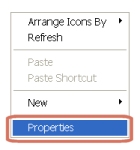
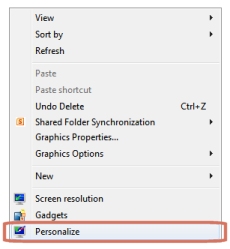
need to do is right-click on your
Windows desktop
and select Properties (on Windows XP) |
 |
| or Personalise (on Windows Vista/Windows 7) |
 |
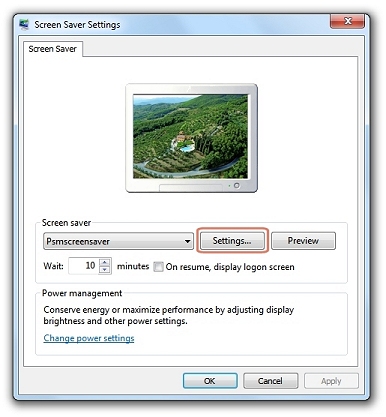
Then click where you see Screen Saver. You should then see something like this:
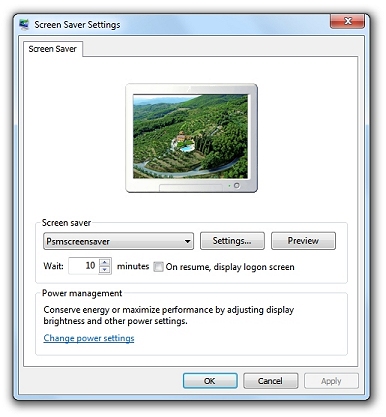
Click the Settings... button ...
... and then you'll see this:
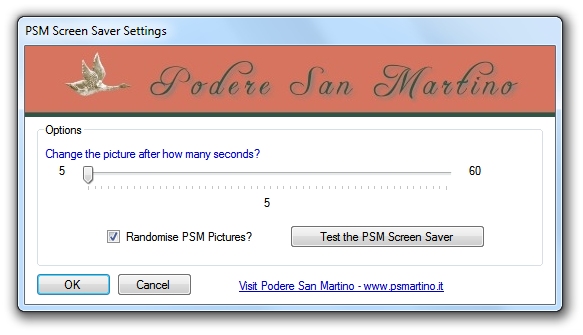
Move the slider to change how quickly the pictures should change. Also, note that you can elect to have them displayed randomly (this is the default), or in the order that the screen saver finds them in.